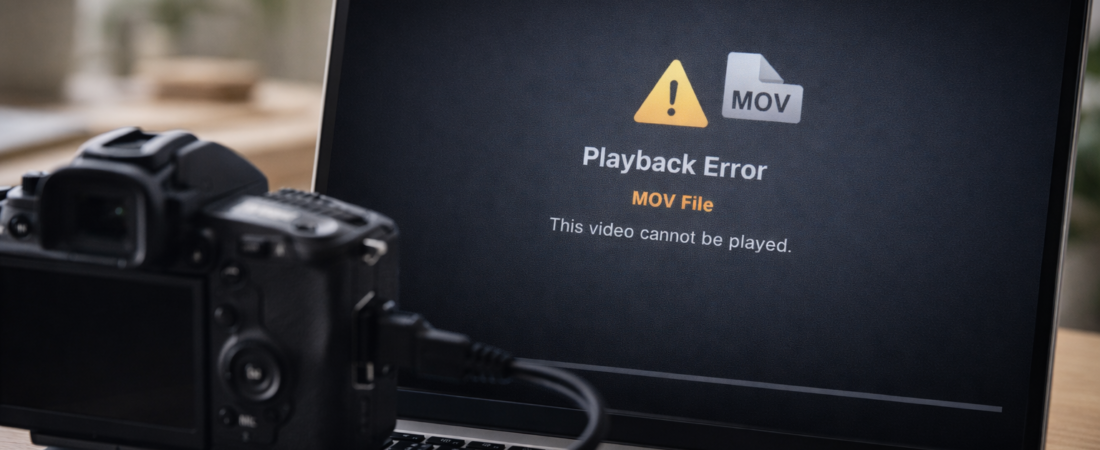
MOV files are commonly recorded on Apple devices, DSLRs, and professional cameras. When a MOV file becomes corrupted, it often fails to open, shows a black screen, or triggers a playback error.
In most cases, corruption affects the file’s structure — not necessarily the entire video data.
Before attempting repair, work through the steps below.
Step 1: Check the File Size
Right-click the file and view its properties.
If the file size looks consistent with the recording length, the video data may still exist.
If the file size is extremely small (for example, only a few KB), the recording likely did not complete successfully. Recovery in that situation is unlikely.
File size is the first indicator of whether repair is worth attempting.
Step 2: Try a Different Media Player
MOV files may not open in the default player depending on codec or system compatibility.
Try:
-
VLC Media Player
-
Opening the file on another computer
-
Transferring the file to a different device
If it fails everywhere, the issue is likely internal corruption rather than compatibility.
Step 3: Copy the File Off the Original Storage
If the MOV file is on:
-
An SD card
-
An external drive
-
A camera’s internal storage
Copy it to your computer before attempting repair.
Sometimes storage read errors mimic file corruption.
Step 4: Identify How the Corruption Happened
Common causes of MOV corruption include:
-
Camera power loss during recording
-
Battery removal before saving completed
-
Removing SD card too early
-
Transfer interruption
-
Storage device failure
MOV files rely on a header and index structure that tells media players how to read the video and audio streams. If that structure is damaged, playback fails.
Step 5: When Repair Software Is Worth Trying
Repair software may help if:
-
The file size appears normal
-
Recording stopped unexpectedly
-
The file worked before transfer
-
Only the header or index appears damaged
Most MOV repair tools work by rebuilding the file structure using reference data from a working file recorded on the same device.
They do not recreate missing footage — they reconstruct damaged structure.
For a neutral breakdown of which tools are commonly used and when they tend to succeed, see Best Software to Repair Corrupted MP4 and MOV Video Files.
That guide explains realistic expectations and when repair may not be worth continuing.
When Repair Is Unlikely to Work
Repair software cannot fix:
-
Zero-byte files
-
Files that were never fully written
-
Physically damaged storage
-
Overwritten video data
If the camera never finished saving the file, no tool can recover footage that was never recorded.
Understanding this prevents unnecessary expense.